Will This M.2 SSD Work? Keys, SATA vs NVMe and Slot Wiring
Two M.2 SSDs can be the same size and fit the same slot while only one of them works in it. How to read the keys, the size code and the slot's wiring.
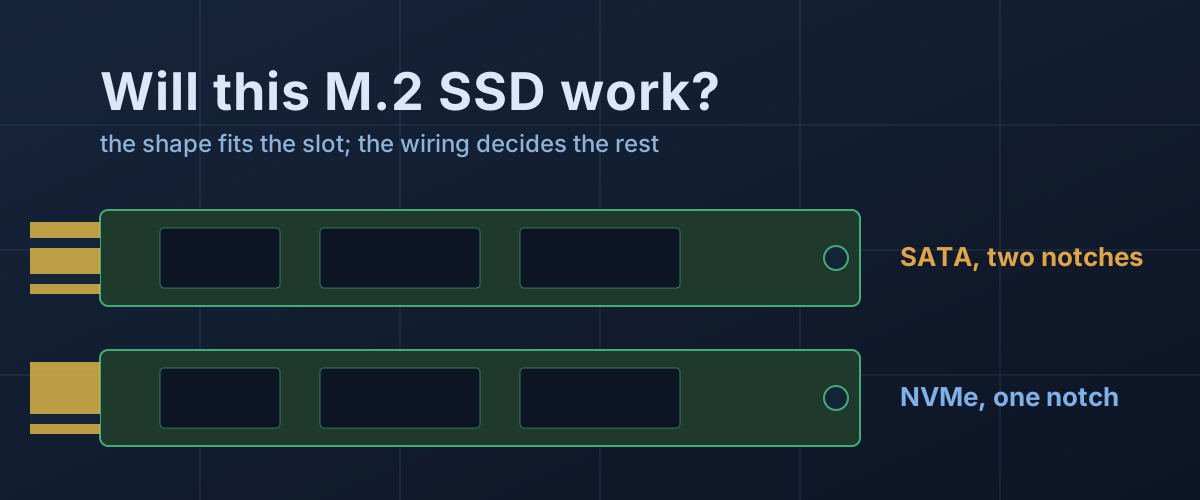
An M.2 SSD arrives, slides into the slot, lies flat under its screw, and the computer never sees it. Or it lines up with the slot and will not go in at all. Both happen because “M.2” names a shape and a connector, not what travels through it.
Put two drives side by side. Sandisk’s WD Blue SA510 data sheet lists an M.2 2280 drive with a SATA III 6 Gb/s interface, rated at up to 560 MB/s. Western Digital’s PC SN740 product brief lists another M.2 2280 drive, this one PCIe Gen 4 x4 NVMe, rated at up to 5,150 MB/s. Same length, same width, same connector. They are different devices, and a slot can accept one physically while only talking to the other.
Four things have to line up: the size, the notch, the protocol the slot is wired for, and how many lanes of which generation it provides. The box usually states the first two. The last two live in the manual.
M.2 is a connector that carries two different interfaces
M.2 began as “NGFF”, the Next Generation Form Factor, and was taken up by PCI-SIG and the SATA standards body together. SATA-IO’s All About M.2 SSDs webcast, given by engineers from Micron, TE Connectivity and Intel, sets out the result: one card format that can carry either a single SATA link or up to four lanes of PCI Express.
SATA is the same interface a 2.5-inch SSD or a hard drive uses, with the same 6 Gb/s ceiling, now running over a card edge instead of a cable. PCIe is the expansion bus graphics cards use, and NVMe is the command protocol written for flash storage on it. An “M.2 NVMe” drive and an “M.2 SATA” drive share a form factor and nothing else, which is why the two drives above differ in rated speed almost tenfold.
The size code: width and length, and not much else
The four digits are millimetres. 2280 means 22mm wide and 80mm long. The same webcast lists the common SSD sizes as 2230, 2242, 2260, 2280 and 22110. All are 22mm wide, so length is the variable, and it decides where the retaining screw lands.
Length says almost nothing about the drive inside. The SN740 is sold as a 2230, a 2242 and a 2280 with the same controller and interface. What matters is which lengths the slot has a screw post for. ASUS’s PRIME B650-PLUS manual lists both of its slots as type 2242/2260/2280/22110. The ROG STRIX B650-A GAMING WIFI manual stops two of its three slots at 2280, so a 22110 drive only fits the third. A laptop’s documentation names the length it takes, and a drive that is too long has nowhere to go.
Thickness is the other physical limit. The M.2 standard grades modules as single-sided (S) or double-sided (D) with fixed component heights, and the SN740 brief specifies a single-sided build, the thinner of the two. Heatsinks add far more. Framework’s storage compatibility page says either a single or double-sided 2280 drive fits its 13-inch laptop, but drives with attached heatsinks are unlikely to have the clearance.
The notches: what a drive can physically enter
The connector end of an M.2 card has 75 pin positions, and a key is a gap cut where some of those pins would be. Two keys matter for SSDs. Per the key table in the SATA-IO webcast, the B notch sits at pins 12 to 19 and the M notch at pins 59 to 66.
The notch tells the slot what signals the card might use. SATA-IO’s M.2 card format document defines key B for one SATA link or up to two PCIe lanes, and key M for one SATA link or up to four PCIe lanes. A slot has a single matching ridge, while a card can have two notches.
That asymmetry is the whole trick. The same document says SSDs built for the key B interface set should carry both notches, so they fit either a B or an M socket. A drive that needs four lanes carries only the M notch and physically cannot enter a B socket. So a SATA M.2 drive usually shows two notches, and a four-lane NVMe drive shows one. The SN740 brief lists “M key”, as expected for a Gen 4 x4 drive.
Fitting is not the same as working
Here is the trap. A two-notch SATA drive fits an M-key slot perfectly, and every M.2 slot on the ASUS boards cited here is M-key. Whether the slot carries SATA is a wiring decision the manufacturer made, and the key does not reveal it.
When a card is inserted, a set of configuration pins tells the host which kind it is. The SATA-IO document specifies that a SATA SSD grounds all four of them. A slot wired for SATA can then use it. A slot with only PCIe behind it has nothing to switch to, and the drive never appears.
Two boards from the same maker show the split. ASUS’s TUF GAMING B550-PLUS manual describes both M.2 slots as supporting “PCIe & SATA modes”. The newer PRIME B650-PLUS lists PCIe 5.0 x4 for one slot and PCIe 4.0 x4 for the other, with no SATA mode at all. A SATA M.2 drive seats identically in both boards and works in only one. Laptops do the same: Framework says SATA M.2 drives will not work in its 11th and 12th Gen Intel models and an NVMe drive is required.
The manual is also where slot sharing hides. On the B550-PLUS, the second M.2 slot shares bandwidth with SATA ports 5 and 6, and those ports are disabled whenever that slot is populated. The ROG STRIX B650-A switches off its third M.2 slot when its second x16 slot is in use. So installing a new SSD can make an existing hard drive vanish from the system. The port has been switched off, not the disk wiped: moving the hard drive to a port that is not shared, or the SSD to a slot that does not share, brings it back.
Lanes and generations: works, but how fast
Once an NVMe drive is in a PCIe slot, the two sides negotiate a link: some number of lanes, each at some generation’s speed. Per Rambus, PCIe 3.x runs at 8 GT/s per lane, 4.0 at 16 GT/s and 5.0 at 32 GT/s, so each generation doubles the rate of the one before. The link runs at whatever both ends support, which is why a mismatch usually costs speed rather than stopping the drive.
Datasheets say so in their footnotes. Samsung’s 990 PRO data sheet rates the drive at up to 7,450 MB/s over PCIe 4.0 x4 and notes it is backward compatible with PCIe 3.0. The SATA-IO webcast puts four lanes of PCIe 3.0 at about 4 GB/s before overhead, so in a Gen 3 slot that drive works with its headline number roughly halved. The SN740’s brief spells out the full ladder, down to Gen 2 x1.
Lane count matters as much as generation. The PRIME B760-PLUS D4 manual gives its first two M.2 slots PCIe 4.0 x4 and its third PCIe 4.0 x2, half the lanes, on the same board. Samsung’s 990 EVO data sheet makes the trade explicit from the drive’s side: its interface row reads “PCIe 4.0 x4 / 5.0 x2”, two Gen 5 lanes standing in for four Gen 4 ones. Its footnote lists the fallbacks it supports as 4.0 x4 and 3.0 x4, and it names no two-lane Gen 4 or Gen 3 fallback, so a slot like the B760’s third is one to check with Samsung rather than assume.
How much a slower link costs depends on the work. The headline MB/s on every data sheet here is a sequential figure, and sequential transfers are what a narrow or older link caps first. A long copy can also be limited by the drive itself once its fast cache fills, covered in the sustained write cliff, and no slot changes that. The 990 EVO, which uses host memory instead of its own DRAM, is also the kind of drive discussed in what a DRAM cache does.
Power off before you touch it
M.2 is not a hot-plug connector. The SATA-IO webcast describes it as having a low insertion rating and not intended for hot-plug, and the card format document lists hot plug as not supported. Shut the machine down fully, and unplug a desktop, before removing or fitting a drive. Swapping the drive that holds the operating system also means moving or reinstalling what is on it, so copy anything you need off the old drive before it comes out.
Checking a slot before you buy
The drive’s data sheet and the slot’s documentation each answer half the question. Read both.
- Find the slot’s line in the manual. For a desktop, it is in the storage section of the motherboard specifications, in the form “M.2_2 slot (Key M), type 2242/2260/2280/22110 (supports PCIe 4.0 x4 mode)”. For a laptop, the maker’s service manual or support page plays the same role. Note the key, the lengths, the PCIe generation and lane count, and whether “SATA” appears at all.
- Read the drive’s interface row, not the box front. “SATA III 6 Gb/s” and “PCIe Gen 4.0 x4, NVMe” are different devices. If the slot lists no SATA mode, a SATA M.2 drive will not work in it however well it fits.
- Match length and height. The slot has to list the drive’s length, and a laptop or a board with its own heatsink cover may not clear a drive that ships with one.
- Read the footnotes under the storage table. Shared lanes, SATA ports that switch off, and slots that disable when another is used are all listed there, usually marked with an asterisk.
- Expect a mismatched generation to cost speed, not function. A Gen 4 drive in a Gen 3 slot runs at Gen 3 speed. Buying a Gen 5 drive for a Gen 3 slot pays for a ceiling that link cannot reach.
If a correctly matched drive appears but starts throwing errors or dropping out later, that is a different question, and the signs a drive is failing covers what the drive itself can report.