Does an NVMe SSD Need a Heatsink? How Thermal Throttling Works
An NVMe drive slows itself when it gets hot, by design. What sets the limit, what a heatsink changes, and how to tell if yours has ever throttled.
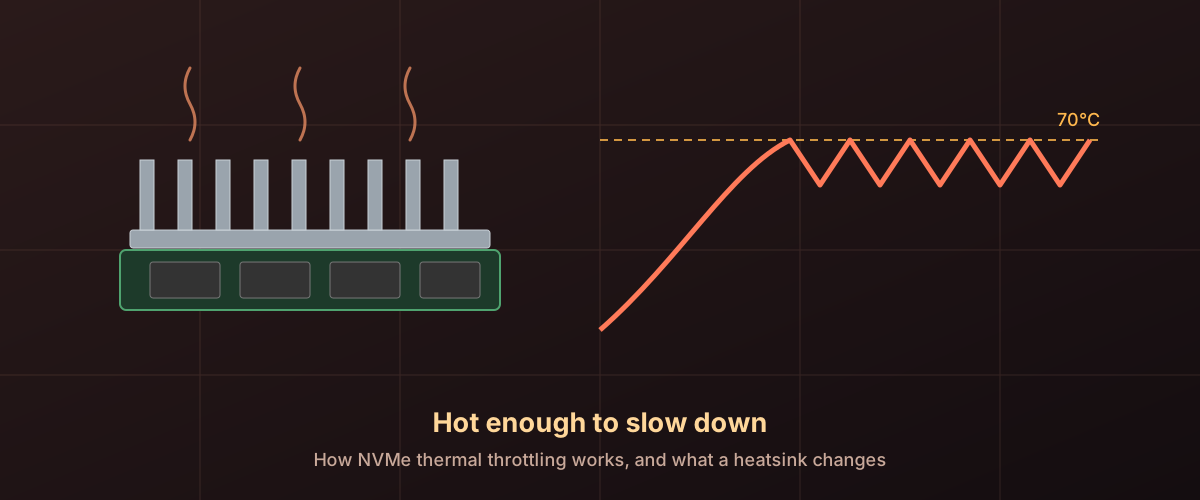
A new NVMe drive goes in, and a monitoring tool reports it sitting at 70°C during a long copy. Someone on a forum says it needs a heatsink. The PS5 manual insists on one. The drive came with a thin metal sticker in the box and no explanation. And the copy that started at 5,000 MB/s is now running at less than half that.
Two questions are tangled up in that. Is the heat hurting the drive, and is it slowing the drive down? The answers are, mostly no and sometimes yes, and the “sometimes” depends on things you can check.
Where the heat comes from
An NVMe drive draws very little power while it waits and a lot while it works. Samsung’s 990 PRO datasheet puts the 1TB model at 50 mW idle and an average of 5.4 W during reads. The PCIe 5.0 9100 PRO averages 7.6 W to 10.5 W on reads, depending on capacity. That is a hundredfold jump, and nearly all of it ends up as heat in a stick of circuit board 22 mm wide.
The important word is sustained. A game load or an app launch is a burst: the drive spikes, finishes, and drops back to milliwatts before much heat has built up. A drive gets near its limit only when it is kept busy for a minute or more without a break: a large copy, a video recording, a game download being unpacked.
The number the drive is watching
Every NVMe drive reports a temperature, and the NVM Express Base Specification is careful about what it means. It is a composite temperature, calculated however the manufacturer chooses, and the spec says outright that it “may not represent the actual temperature” of any physical point on the drive. It is a control signal, not a thermometer reading. Two drives showing 70°C are not necessarily equally hot.
Against that number the drive declares two thresholds:
- Warning (WCTEMP). The spec defines it as an overheating condition during which the drive keeps working but cooling or a lighter workload is recommended. It recommends drives report 343 kelvin, which is 70°C. That is where Samsung’s operating range ends: both datasheets above give 0°C to 70°C, “measured by S.M.A.R.T. temperature”, with proper airflow recommended.
- Critical (CCTEMP). Higher, and serious. The spec lists what may happen there: automatic shutdown, extreme throttling, possible data loss, or permanent damage.
Throttling exists to keep the drive away from the second number. When the composite temperature reaches the drive’s own trigger point, the controller drops into a lower-power state, slower and cooler, and climbs back out once the temperature falls far enough. For the throttle points the spec defines, it leaves the exact recovery point to the vendor, which keeps the drive from flipping back and forth on every fraction of a degree. That gap is why throttling looks like a sawtooth rather than a smooth slope.
What it looks like on a real drive
TechPowerUp’s review of the ADATA Legend 960 includes a thermal throttling test that shows the whole mechanism in three runs: ten minutes of non-stop sequential writes with the drive installed in a normal case, temperature read from the drive’s own SMART report.
- Uncooled. In TechPowerUp’s trace the drive writes at about 5,400 MB/s, reaches the low 70s in roughly 75 seconds, and from then on alternates between about 5,400 and 2,400 MB/s, the temperature sawing just below the throttle point. A thermal camera put the drive’s surface at around 90°C.
- With ADATA’s included heatspreader. The first throttle arrives at roughly 170 seconds instead of 75, and the full-speed stretches between throttles are longer. But it still throttles. Surface temperature fell to 72°C, and TechPowerUp notes the drive underneath was still hot enough to slow down.
- With a 120 mm fan blowing on the bare drive. About 52°C, and 5,400 MB/s held flat for the entire ten minutes.
That third result is the one to remember. The fan, with no heatsink at all, beat the heatsink without a fan.
What a heatsink actually does
A heatsink does two jobs, and they are easy to confuse.
The first is thermal mass. A block of aluminium soaks up heat before it gets hot itself, so the drive takes longer to reach its throttle point. That is the heatspreader result above: same eventual behaviour, reached later. A burst that would have finished in two minutes now finishes before throttling begins.
The second is surface area, and it only helps if moving air carries the heat away. A heatsink in still, warm air eventually saturates and the drive throttles anyway. Airflow, by contrast, removes heat continuously, which is why the fan alone held full speed indefinitely.
Data centres learned this at scale. LinkedIn engineers describe in a paper on SSD monitoring that thermal throttling tickets were a significant share of all their SSD tickets, and that the hot drives traced back to a wrong chassis fan setting. Fixing the fan policy dropped one NVMe model’s average temperature from 40°C to 33°C across their data centres, and throttling tickets fell steadily after. No hardware was added.
There is a second-order effect worth knowing about the datasheet numbers. Samsung’s 9100 PRO datasheet states that its performance and power figures were measured with the drive “as a secondary drive in a fan cooling desktop system.” The headline speed assumes air moving over the drive. Whether that holds in your case depends on where the slot is.
When a heatsink earns its place
A PS5. Sony’s installation guide says an M.2 drive in the console requires “effective heat dissipation with a cooling structure, such as a heatsink.” It also sets a hard size limit: no more than 11.25 mm thick in total, with at most 8 mm above the board and 2.45 mm below it, or the slot cover will not close. Drives sold with a heatsink attached publish their height. The 990 PRO with Heatsink is 8.88 mm, and Samsung’s datasheet warns the warranty is void if the heatsink is removed, so check the dimensions before buying one for a different machine.
Sustained writes. Video capture, large backups, moving a game library between drives. TechPowerUp’s uncooled drive wrote at full speed for about 75 seconds before throttling, which at 5,400 MB/s is roughly 400 GB. Anyone who regularly moves that much in one go is in throttling territory without cooling.
PCIe 5.0 drives. Higher bandwidth costs more power, and more power is more heat in the same physical stick. At 1TB, the 9100 PRO’s read figure is about 40% higher than the 990 PRO’s, with the same 70°C limit to stay under.
A slot with no airflow. An M.2 slot tucked under a graphics card, or behind a motherboard tray, may see very little moving air. If the board came with a metal cover over the slot, that cover is a heatsink: use it rather than leaving it in the box.
When it does not matter
Bursty everyday use. Booting, launching apps, loading games, and browsing finish long before a drive heats to its limit. A heatsink changes nothing a person can notice here.
Drives that hit the write cliff first. Many drives write at full speed only until their SLC cache fills, then drop sharply on their own, regardless of temperature. On those, the write cliff arrives before heat becomes the limit.
Laptops. Most laptop M.2 slots have no room for one. As covered in the article on M.2 compatibility, heatsinked drives often will not clear a laptop’s chassis.
External enclosures. A compact USB enclosure has its own thermal problem, and the external drive speed guide covers how to tell throttling from a slow link there.
Is the heat damaging the drive?
Within the drive’s rated range, no. A drive at 68°C during a long copy is operating as designed; the warning threshold is defined by the spec as a level at which the drive keeps working. The risk of damage belongs to the critical threshold, and throttling is the mechanism that keeps the drive from getting there.
Heat does matter for something else: how long data survives on a drive that is switched off. Stored data leaks charge faster when warm, which is a separate question covered in how long an SSD holds data unpowered.
Check whether yours has ever throttled
Rather than guess, ask the drive. NVMe drives keep running counters of how long they have spent hot.
On Windows 11, Microsoft’s page on storage critical warnings gives the path: Settings > System > Storage > Advanced storage settings > Disks & volumes, then Properties on the drive. Drive health shows the temperature of the device in Celsius. Microsoft notes Windows only monitors NVMe drives here, not SATA SSDs or hard drives. This shows the current reading only, so check it during a long copy, not at idle.
For the history, use smartctl from smartmontools (available for Windows, macOS and Linux). It only reads from the drive and changes nothing:
smartctl -a /dev/nvme0Use the device name smartctl reports for your drive (smartctl --scan
lists them). According to the smartmontools
source,
the output for an NVMe drive includes:
- Warning Comp. Temp. Threshold and Critical Comp. Temp. Threshold: this drive’s own limits, which may differ from 70°C.
- Temperature: the current composite temperature.
- Warning Comp. Temperature Time and Critical Comp. Temperature Time: total minutes the drive has spent at or above each threshold. This is the line that answers the question. Zero means the drive has not logged a minute in warning territory.
- Thermal Temp. 1 and 2 Transition Count, shown only if non-zero. The spec defines these as counting throttling triggered by limits the host has set, light and heavy respectively, so a zero here does not prove the drive’s own built-in throttle never acted.
If the warning-time counter is in the hundreds of minutes and you see copies slowing in a sawtooth, cooling will help, and moving air will help more than metal. If it still reads zero on a drive that has been in service a while, the drive is not spending meaningful time hot in your workload, and a heatsink would be decoration.
The short version
- Throttling is a deliberate, specified behaviour, not a fault. It keeps the drive below the temperature where damage becomes possible.
- The limit most drives use for normal operation is about 70°C, measured as a composite value that is not a physical temperature.
- A heatsink delays throttling. Airflow prevents it. The best result comes from both.
- It matters for long, sustained transfers, PS5 installs, Gen5 drives and airless slots. It does not matter for everyday bursts.
- The drive’s own warning-time counter tells you which group you are in.