What a DRAM Cache Does, and Why Cheap SSDs Skip It
DRAM-less SSDs look identical on the box and cost less. Here is what the missing chip actually changes about how the drive behaves.
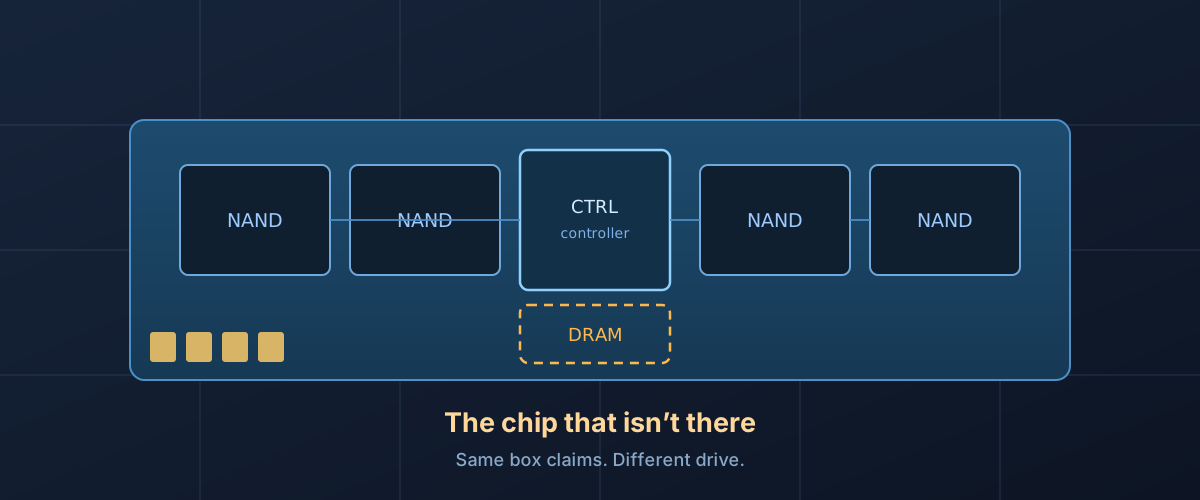
Two SSDs sit next to each other. Same capacity, same NVMe interface, same “up to 5,000 MB/s” on the front of the box. One is forty dollars cheaper. The difference is usually a chip that isn’t there.
What the DRAM is actually for
An SSD doesn’t store your file at a fixed address. Flash memory wears out as it’s written, so the drive constantly moves data around to spread that wear evenly, and it keeps a map of where everything currently lives. That map is called the flash translation layer, and on a large drive it is big: roughly a gigabyte of map for every terabyte of storage.
A drive with DRAM keeps that map in a small, fast RAM chip of its own, which as controller maker Phison describes it holds “a digital map of where data is being stored across the SSD’s NAND flash memory cells.” It can look up any address instantly. A DRAM-less drive has nowhere to put the whole map, so it keeps most of it in the flash itself and caches only a fragment.
The consequence: on a DRAM-less drive, some of your reads become two reads. One to find out where the data is, one to go get it.
Why benchmarks hide this
Sequential transfers, like copying one large video file, barely touch the map. You look up where the file starts and then stream forward. That’s why a DRAM-less drive can post a sequential number essentially identical to a drive costing much more.
Random access is where the map matters. Launching an application, booting the operating system, loading a game level, searching a photo library: these are thousands of small reads scattered across the drive, each one needing a map lookup. This is also, unhelpfully, the workload that most determines whether a computer feels fast.
So the specification that differs most between a cheap drive and an expensive one is frequently the one that isn’t printed on the box.
Host Memory Buffer: a partial fix
Modern DRAM-less NVMe drives can borrow a small slice of your computer’s own RAM, typically 64MB or so, through a feature in the NVMe specification called Host Memory Buffer. It caches more of the map than the drive could alone, and it genuinely narrows the gap.
It doesn’t close it. The borrowed memory sits across the PCIe bus rather than on the drive, and 64MB still only covers a fraction of the map on a 2TB drive. HMB also requires driver support: it works well on a current desktop OS, and does nothing at all in a games console, a USB enclosure, or most NAS units, where a DRAM-less drive falls back to its slowest behaviour.
That last point is the practical one. A DRAM-less drive that reviews acceptably in a laptop can behave very differently in an external enclosure.
It’s also worth being clear that DRAM-less is not a budget-only design. Samsung’s 990 EVO Plus, a mainstream and generally well-regarded drive quoting up to 7,250 MB/s sequential reads, lists HMB rather than an onboard DRAM cache on its own datasheet. The absence is a design trade-off manufacturers make across the price range, not a marker of a bad drive.
How to tell before you buy
Manufacturers rarely advertise the absence. Some approaches that work:
- Check the detailed specification sheet, not the product page. Drives with DRAM usually say so, because it’s a selling point. Silence is informative.
- Look for “HMB” in the documentation. Host Memory Buffer support is only relevant to a drive that has no DRAM of its own. Mentioning it is close to an admission.
- Watch the price against the class. A Gen4 NVMe drive priced well under its peers at the same capacity has usually given up either the DRAM, the NAND type, or both.
- Find a teardown or a review that lists the controller. Controller model numbers are searchable, and whether a controller supports DRAM at all is public.
When DRAM-less is the right buy
Not every drive needs one. If the plan is bulk storage (a Steam library you load from occasionally, a media archive, a backup target), sequential speed is most of what you’ll use, and paying for DRAM is paying for behaviour your workload never triggers.
The drives where it matters are the ones doing many small operations: a boot drive, a system drive, a scratch disk for editing, or anything that will live in an external enclosure where HMB won’t save it.
The useful reframing is that DRAM-less drives aren’t defective. They’re a different product sold in packaging designed to look like the same one.