Should You Defragment an SSD? What Windows Does and Why
Windows says Optimize, old advice says never defrag an SSD, and Microsoft's docs say it happens monthly. Here is how those fit together.
Open the Windows drive tool and your SSD has a button that says
Optimize, next to a media type that says solid state drive. Search the
web and you will find a decade of advice saying never to defragment an
SSD. Read Microsoft’s reference for the defrag command and it says the
scheduled task defragments SSDs once a month. All three are true, and
they stop contradicting each other once you separate two things that
share the word “fragmentation”.
Why defragmenting helped hard drives
A file system hands out space in pieces. Delete and rewrite enough files and a large file ends up in several chunks scattered across the disk. On a hard drive, reading those chunks means moving the heads to each one in turn, and every move costs milliseconds. Microsoft’s support page on optimizing drives describes the hard drive remedy as reorganizing files so they are lined up and easier for the drive to read. That is a fix for a mechanical problem.
A solid-state drive has no heads. Reaching a chunk in one place costs about the same as reaching it in another, so the penalty that defragmenting removes mostly is not there. In 2009 the Windows team said as much when Windows 7 switched off scheduled defragmentation on SSDs: SSDs read randomly so well that defragmenting is not worth the extra writing it causes.
The drive does not store the file where the OS thinks it does
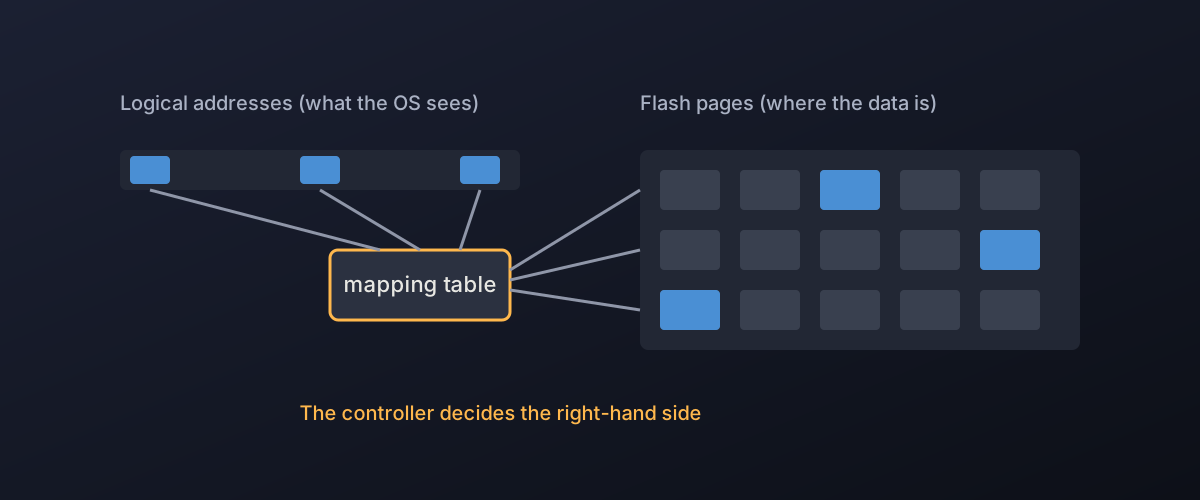
There is a second reason defragmenting an SSD accomplishes less than it appears to. The operating system addresses a drive in logical blocks, numbered from zero. A hard drive more or less lays them out in that order. A flash drive does not. As Kioxia’s technical brief on logical to physical address translation explains, the controller keeps a mapping table from each logical address to a physical location in the flash, updates it on every write, and moves data between physical locations during background maintenance while the logical address the host sees stays the same.
So when Windows moves a file to make its logical addresses adjacent, it is rearranging the file system’s view. The drive writes the moved data to whatever pages it picks. Nothing guarantees the result is physically neighbouring, and for a device built to read many locations in parallel, physical neighbourhood is not the thing that matters anyway.
What a defrag costs
The moved data has to be written. Flash cannot overwrite in place, so each rewrite consumes program and erase cycles, and the same Kioxia brief notes that the extra data movement behind address translation contributes to write amplification, which shortens a device’s life. A defrag that relocates 100 GB of files writes at least 100 GB to the drive on top of whatever the controller does internally. Set that against the terabytes-written figure on your drive’s datasheet (see what TBW promises) and the answer for a single run is usually “negligible”, but it is wear for close to no gain, which is why it is not worth doing on a schedule you chose yourself.
Why fragmentation is not completely free on an SSD
If that were the whole story, Windows would never defragment an SSD, and Microsoft’s defrag reference says it does. Its description of the scheduled task says SSDs get “traditional optimization”, which it defines as defragmentation plus retrim, once per month, and that a manual defragmentation between scheduled runs makes the next scheduled run skip it. Two costs of fragmentation survive the move to flash.
Every piece is a separate request. A file in a thousand fragments takes a thousand reads instead of one long one. An SSD handles that far better than a hard drive, but it is still more commands, more metadata lookups and less sequential throughput than the same file in one piece.
NTFS has a limit on how many pieces it can describe. Microsoft’s support article on heavily fragmented files explains that the structure NTFS uses to list a file’s allocations is finite. A file with enough fragments cannot grow further, and the error reads “The requested operation could not be completed due to a file system limitation”. The article puts the point at roughly 40 to 90 GB for a highly fragmented file and says defragmenting fixes it for ordinary files, though not for compressed or sparse ones. It was written for the Windows Vista and Windows 7 era, so it tells you the limit exists rather than how often current Windows hits it.
Microsoft’s defrag page does not say why the monthly pass is there. A write-up by Scott Hanselman quotes a Microsoft storage developer giving a reason tied to volume snapshots: copy-on-write performance for snapshots is slow on a fragmented SSD volume. That is a single secondhand account rather than documentation, so treat it as the likely explanation, not a confirmed one.
The practical reading is that a once-a-month pass keeps worst-case fragmentation from accumulating, and it costs one modest rewrite of the files that need it. That is a very different thing from the daily defrag-everything habit that the old advice warns against.
What the Optimize button does on your SSD
Windows picks the operation by media type. The Optimize-Volume reference lists the default for an SSD with TRIM support as retrim, which sends TRIM hints for every currently unused sector so the drive knows what it can reclaim. Hard drives get analysis and defrag. An SSD without TRIM support gets no operation at all, which matters for some USB enclosures: if the drive never reports TRIM, Optimize quietly does nothing. The full-SSD article covers why that reclaiming step matters for speed.
So the answer to the opening puzzle: Optimize on an SSD is mostly a retrim, with an occasional defragmentation folded in by Windows itself.
What to do
- Leave scheduled optimization on. Microsoft’s support page says it runs weekly by default and can be set to daily, weekly, monthly or off. The default is fine for an SSD.
- Do not run a manual defrag or buy a third-party defragmenter for an SSD. The scheduler already tracks when the monthly pass is due, and a manual run only spends writes.
- If you want to look, use analysis.
defrag C: /a /vfrom an administrator prompt reports fragmentation without moving anything. - If you want the retrim without waiting,
defrag C: /lruns it. - Keep free space. The defrag reference says it needs at least 15% of the volume free to defragment completely, and a nearly full SSD has bigger problems than fragmentation.
- Hard drives are different. An HDD still benefits from regular defragmentation, and Windows handles that itself.
None of these commands deletes data, and none of them is urgent. The honest summary is that your SSD does not need you to defragment it, and Windows does the small amount that it does need on its own.