How to Tell a Drive Is Failing Before It Takes Your Data
SMART warns you about some failures and says nothing about others. What the counters mean, what sounds mean, and when to stop diagnosing and start copying.
Something changed. A folder that used to open instantly now hangs for eight seconds. A file copy stalls at 94 percent and sits there. The enclosure on your desk is making a noise it was not making last month. Underneath all of these is the same question, and it is more urgent than most computer questions: do I have weeks, or do I have hours?
Storage is the one component where guessing wrong costs something you cannot buy a replacement for. Drives do publish a running account of their own errors, readable without any special equipment. That account is also incomplete in a specific, well documented way, and knowing where the gap sits matters as much as knowing how to read the numbers.
SMART is a report the drive writes about itself
Every drive sold in the last two decades, spinning or solid state, keeps internal counters under a standard called SMART: Self-Monitoring, Analysis and Reporting Technology. The drive tallies its own events. Sectors it had to retire. Commands that timed out. Reads it could not correct. Software on your computer asks for that table and displays it.
Two things about this matter more than anything else, and most advice skips both.
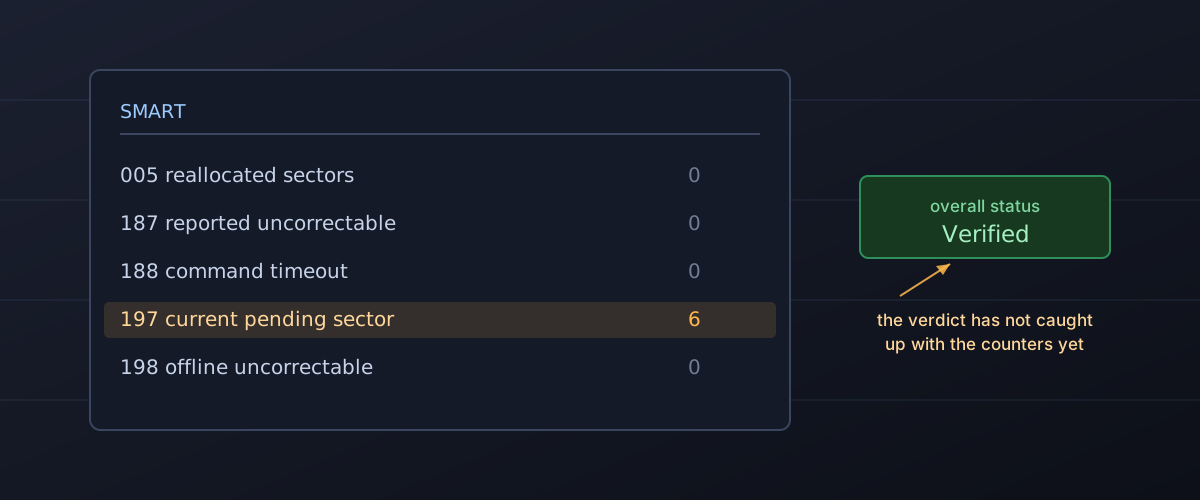
The first is that the single pass/fail verdict your operating system shows you is the least informative thing in the table. Disk Utility and the Windows status field condense a few hundred bytes of counters into one word. That word flips when the drive’s own firmware decides a normalised value has crossed a threshold the vendor chose, and vendors choose those thresholds conservatively, because a drive that cries wolf generates warranty returns. “Verified” means the drive has not yet crossed its own line. It does not mean the counters behind that verdict are zero.
The second is that the raw counters predict failure better than the verdict does, and a few of them predict it far better than the rest.
Five counters carry most of the signal
Backblaze runs tens of thousands of drives and publishes what happens to them. In What SMART Stats Tell Us About Hard Drives, it narrows the field to five attributes, chosen in an earlier post on the grounds that “they are consistent across manufacturers and they are good predictors of failure”:
- SMART 5, Reallocated Sectors Count. Drives ship with spare sectors held back from the advertised capacity. When the firmware concludes a sector is bad, it retires that sector and points its address at a spare. This counter is how many times that has happened.
- SMART 197, Current Pending Sector Count. A sector the drive suspects is bad but has not remapped yet, because it cannot read the contents well enough to move them somewhere else. This is the one to take personally: a pending sector is a piece of your data the drive is currently struggling to return.
- SMART 198, Offline Uncorrectable and SMART 187, Reported Uncorrectable Errors. Reads the drive gave up on, found during a background surface scan and during normal use respectively. Error correction did not save them.
- SMART 188, Command Timeout. The drive failed to answer a command in time. Often a cable or power problem rather than the media, which is why it is worth checking the boring causes before condemning the drive.
The first three describe the same physical process from different angles: the recording surface is developing spots the drive can no longer trust. Platters and flash both wear, and both keep a reserve of spare capacity to paper over the wear. The counters tell you how fast that reserve is being spent.
Backblaze’s numbers put the size of the signal in context. Of drives that failed, 76.7 percent had at least one of those five counters above zero. Of drives still running normally, only 4.2 percent did. A non-zero value here is genuinely unusual on a healthy drive, which is what makes it worth acting on.
Google’s Failure Trends in a Large Disk Drive Population, presented at USENIX FAST ’07, measured the same effect with survival curves across more than one hundred thousand drives. Its finding on surface scan errors is the single most quotable number in drive reliability: “after the first scan error, drives are 39 times more likely to fail within 60 days than drives without scan errors.” Reallocations were less dramatic but still severe, with “the average impact on AFR” appearing “to be between a factor of 3-6x.” The hardware in that study is long obsolete, consumer ATA drives of 80 to 400GB, but the mechanism it describes is the same one current drives implement.
The practical reading: the first non-zero value is the event. Not the tenth, not some threshold in the hundreds. Going from zero to one is the step change, and after that what matters is the rate. A drive that has sat at 8 reallocated sectors for two years is telling you a different story from a drive that went from 0 to 8 last week.
The absence of a warning is not a clean bill of health
Here is the part almost every “check your SMART status” article leaves out, and it is the part that should change how you behave.
Backblaze states the gap plainly: “23.3% of failed drives showed no warning from the SMART stats we record.” Google’s study, looking at a slightly different set of parameters, found the gap wider still. “Out of all failed drives, over 56% of them have no count in any of the four strong SMART signals,” and even after adding every remaining parameter except temperature, “over 36% of all failed drives had zero counts on all variables.” The conclusion the authors drew is worth reading as written: failure prediction models based on SMART alone “are likely to be severely limited in their prediction accuracy.”
This asymmetry is the whole practical lesson. A bad SMART reading is strong evidence that a drive is in trouble. A clean SMART reading is weak evidence that it is not.
The same paper punctures a related habit. Temperature is the number enthusiasts watch most closely, and Google “found very little correlation between failure rates and either elevated temperature or activity levels” in its population. Running a drive hard and warm, within its rated range, was not what killed it.
SSDs fail along a different axis
An SSD has no scan errors and no reallocated sectors in the hard drive sense, so the five attributes above mostly do not apply. NVMe drives report their own health structure instead, and Microsoft’s documentation of the SMART/Health Information log defines each field precisely enough to read without guesswork. Four do the work:
- Available Spare, “a normalized percentage (0 to 100) of the remaining spare capacity available,” and Available Spare Threshold, the level at which the drive raises an alarm. This is the flash equivalent of watching reallocated sectors: spare blocks get consumed as bad ones are retired, and the gap between the two numbers is your headroom.
- Percentage Used, which is not a health figure at all. Microsoft’s definition is careful about this: it is “a vendor specific estimate of the percentage of NVM subsystem life used,” and a value of 100 “may not indicate an NVM subsystem failure.” The value is allowed to exceed 100. Passing your endurance rating is a warranty event, not a death.
- Media Errors, “the number of occurrences where the controller detected an unrecovered data integrity error.”
- Critical Warning, a set of flag bits. Two are worth recognising on
sight.
ReliabilityDegradedis set when reliability has dropped “due to significant media related errors or any internal error.”ReadOnlyis set when “the media has been placed in read only mode”: the controller has decided it can no longer safely accept writes. That is an invitation to copy everything off while reads still work, and it does not stay open indefinitely.
The failure profile behind those fields is different from a hard drive’s, which changes what you should worry about. The Google and University of Toronto field study Flash Reliability in Production: The Expected and the Unexpected, covering millions of drive days at FAST ’16, found that compared to hard drives, “flash drives have a significantly lower replacement rate in the field, however, they have a higher rate of uncorrectable errors.”
Read that as a description of the shape of SSD failure rather than a verdict on SSD quality. The whole drive is less likely to stop working. Individual pieces of data are more likely to come back wrong or not at all, quietly, while everything else keeps functioning perfectly. No noise, no slowdown, often no warning: just a file that will not open. The study also found that the raw bit error rates commonly used to model wear “are not predictive of uncorrectable errors or other error modes,” which is why a comfortable-looking wear percentage is not an all-clear.
What the noises mean
Sound only applies to drives with moving parts, and this is worth saying out loud: an SSD that is dying sounds exactly like an SSD that is fine. Silence proves nothing.
On a hard drive, Seagate’s guide to identifying drive sounds draws the line between the two kinds of clicking. Routine head movement is audible and normal: “A drive can ‘chatter’ or ‘click’ when reading and writing data. These are reassuring sounds indicating that the drive is active.” The abnormal version is persistent and rhythmic, and Seagate’s test is that “if a hard clicking persists or is accompanied by any kind of repeating clunking (or grinding) sound, then there is likely a physical issue with the drive.”
Grinding is the one sound that changes what you should do next, because it is the only symptom here where continuing to run the drive makes the outcome worse. Seagate is explicit: a grinding or scratching sound “can mean that continued use will cause physical damage to the disk’s platters and there is a risk to the data,” and if the data matters, “contact Data Recovery Services immediately before troubleshooting.” That inverts the usual order of operations. Normally you investigate and then decide. With grinding, you power down first.
A bus-powered external drive that beeps rhythmically is usually a different problem. Seagate attributes it to power rather than media: “A single intermittent beep means the drive isn’t getting enough power.” Try a different cable, a port directly on the machine, or a powered hub before assuming the worst.
Reading the counters without installing anything
Windows ships a read-only cmdlet for this.
Get-StorageReliabilityCounter
returns, in Microsoft’s description, “information about such things as
the device temperature, errors, wear, and length of time the device has
been in use.” It only reads. In PowerShell:
Get-PhysicalDisk | Get-StorageReliabilityCounter | Format-ListThe fields to read are ReadErrorsUncorrected, WriteErrorsUncorrected
and Wear. Corrected errors are the drive doing its job. Uncorrected
ones are the drive failing to.
macOS shows the summary verdict in Disk Utility when you select the physical device rather than a volume. Apple’s instruction for what to do when it turns bad is unambiguous, and notable for what it rules out: “If Disk Utility tells you the disk is about to fail, back up your data and replace the disk, you can’t repair it.” Apple is equally clear that First Aid “can’t detect or repair all problems that a disk may have.” It checks formatting and directory structure. It does not inspect the media.
The drive maker’s own utility decodes vendor-specific attributes that generic tools show as raw numbers. Backblaze’s warning applies here: manufacturers “report SMART stats differently,” so a value that looks alarming on one brand can be routine on another, and the vendor tool is the one that knows which is which.
When to stop diagnosing and start copying
Any of the following means the investigation is over and the copy starts now: a non-zero Current Pending Sector count, uncorrectable errors on either platform, a reallocated or media error count that has moved since you last looked, Available Spare approaching its threshold, a drive that has put itself in read-only mode, or grinding.
Three things about how to do that copy.
Copy files, do not start with a full disk image. An image reads every sector on the drive, including the empty ones and the bad ones. On hardware that is already struggling, that is the slowest possible route to the data you actually care about, and it can stall on a bad sector before reaching the documents. Copy what is irreplaceable first, in order: work that exists nowhere else, then photos, then everything already in a cloud or another backup.
Copy to different physical hardware. Another partition on the same drive is the same drive.
Leave repair tools until after the copy. Directory repair on macOS,
chkdsk /r on Windows and any vendor surface scan all write to the disk,
and a full surface pass means hours of continuous load on a device that
has just reported it is having trouble. Neither is reckless on healthy
hardware, and both are worth running once your data is somewhere else.
The sequence is what matters: repair operations rewrite filesystem
structures and cannot be undone once started, so run them on a drive
whose contents you have already duplicated, never on your only copy.
Formatting, repartitioning and “erase and reinstall” are permanent, and that includes the versions of those steps buried inside a recovery assistant or a manufacturer’s “restore to factory condition” option. If a tool offers to fix a suspect drive and does not say precisely what it will write, assume the answer is your data.
The honest summary
SMART is a good smoke detector with known blind spots. A warning from it is close to conclusive and should be acted on the day you see it. The absence of a warning is not a promise: roughly one hard drive failure in four, and a much larger share of SSD data loss, arrives with the counters reading clean.
So the real answer to “is my drive failing” is that checking is worth doing, and no result should change whether you keep a backup. The counters tell you when to stop trusting a drive. They were never able to tell you when to start.