Why a 1TB Drive Shows Up as 931GB, and Where the Rest Goes
A new 1TB drive shows 931GB in Windows and something else on a Mac. Nothing is missing. Here is the arithmetic, and how to spot a gap it doesn't explain.
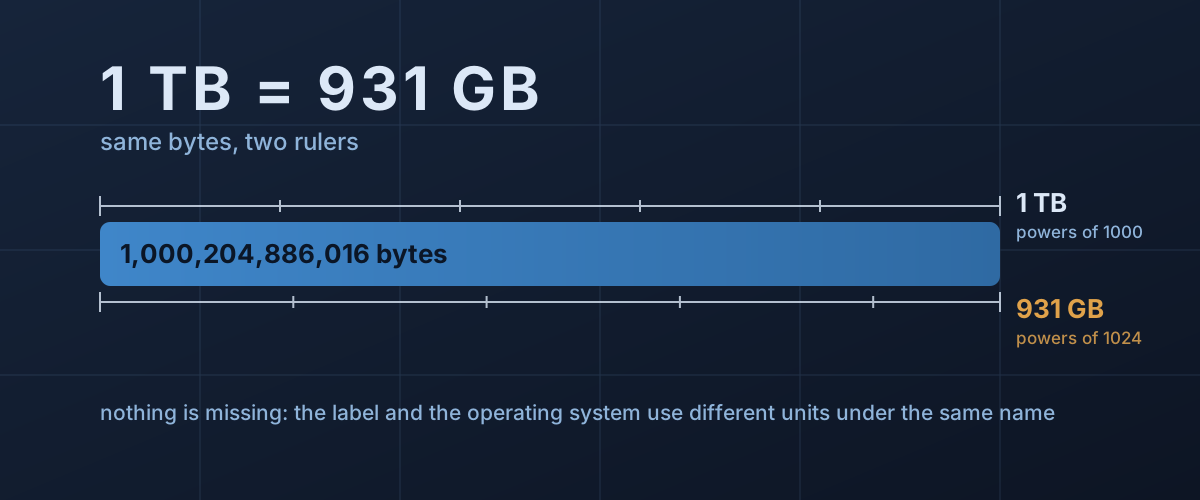
You buy a 1TB drive, plug it in, and Windows reports 931GB. A 4TB external shows up as 3.63TB. On a Mac, the same 1TB drive looks close to right. It is natural to assume something has been taken: a hidden partition, a manufacturer cutting corners, a faulty unit.
Almost always, nothing has. The drive holds slightly more than a trillion bytes. Windows is counting those bytes with a different ruler and labelling the result with the same letters as the box. Once you see the arithmetic, you can tell in a few seconds whether a gap is the ruler or a genuine problem.
One word, two numbers
“Giga” means a billion. That is its meaning in the metric system, and it is the meaning every drive maker prints on the box. Samsung’s 870 EVO datasheet states it in a footnote: 1GB is 1,000,000,000 bytes. Apple’s page on how storage capacity is measured says the same about its own packaging, 1GB as a billion bytes and 1TB as a trillion.
Computers, though, address memory in powers of two, and for decades software used “kilo” to mean 1,024, “mega” to mean 1,048,576, and “giga” to mean 1,073,741,824. Close enough at the kilobyte scale that nobody cared. The standards bodies eventually gave the binary units their own names: the IEC adopted kibi, mebi, gibi and tebi in 1999, abbreviated KiB, MiB, GiB and TiB, and NIST’s summary of the binary prefixes is explicit that the SI prefixes mean powers of ten and the binary ones are a separate set.
Operating systems split over which to use:
- Windows divides by 1,024 and prints “GB”. What it shows as 931GB is 931 GiB. Seagate’s support article on the question gives the conversions as Windows shows them: 500GB appears as 465GB, 1TB as 931GB. Microsoft’s own article on disks larger than 2TB carries a note warning readers that it counts in powers of two, so its “2 TB” is a drive labelled 2.2TB.
- macOS switched to decimal after OS X Leopard, and iOS after iOS 10, according to Apple. A Mac and the box now agree, which is why the same drive seems to shrink when you carry it to a PC.
- Linux tools let you choose. The df manual
page
documents
df -has powers of 1,024 anddf --sias powers of 1,000. Run both on the same drive and you get both answers.
The exact arithmetic for a 1TB drive
Drive capacity is not approximate. A drive exposes a fixed number of logical blocks, and the storage industry standardised that number so drives of the same labelled size report the same count. IDEMA’s LBA1-03 standard gives the formula for drives with 512-byte sectors: 97,696,368 blocks, plus 1,953,504 for every gigabyte above 50. The standard notes that the formula builds in a 0.02% margin over the plain figure. The standard was written for hard drives, but SSD makers use it too: Samsung’s datasheet cites IDEMA by name in its capacity footnote.
For a drive labelled 1TB (1,000GB):
- 97,696,368 + 1,953,504 × 950 = 1,953,525,168 blocks
- × 512 bytes = 1,000,204,886,016 bytes
- ÷ 1,073,741,824 bytes per GiB = 931.51 GiB
That is the 931 in Windows. The drive delivers a little over the trillion bytes it promises. The number looks smaller because each binary unit is bigger than the decimal unit it borrows its name from.
Why the gap grows as drives get bigger
A binary kilobyte is 2.4% bigger than a decimal one, and the difference compounds with every step up, because each step multiplies by 1,024 instead of 1,000. So how far the Windows figure falls below the label depends on which unit the number is expressed in, not on the drive.
This is why the complaint gets louder with every generation of drive. On a 20TB hard drive, Windows shows 18.19TB. The 1.8TB difference looks like a manufacturing fault, but it is the same 9.1% that has applied to every terabyte-class drive ever sold.
The next few gigabytes: partitions and the file system
The unit conversion explains the headline gap. A system drive loses a little more, and this part really is space you cannot use for files.
A Windows boot drive is not one partition. Microsoft’s documentation on UEFI/GPT drive layouts sets out the default: an EFI system partition of at least 200MB, a 16MB Microsoft Reserved partition, the Windows partition, and a recovery partition, for which it recommends a minimum of 990MB when PC makers create it themselves. That is somewhere over a gigabyte that never appears as part of C:. PC makers can add their own utility partitions on top, which Windows hides from File Explorer.
Formatting then spends some of the partition on the file system’s own structures, and the operating system itself takes its share. Apple’s page puts it plainly: actual formatted capacity is less than the label. So on a 1TB boot drive, C: comes out a gigabyte or so short of 931, and the free space is lower again once Windows is installed. On an external drive formatted as one large data partition, the loss beyond the unit conversion is small.
An SSD has more flash than its label, not less
For solid-state drives there is a twist that runs in the opposite direction. Seagate’s explainer on over-provisioning points out that a GiB is 7.37% larger than a GB, and that this difference, between flash counted in binary and capacity sold in decimal, is the minimum amount of spare flash an SSD carries. Manufacturers typically hold back between 7% and 28% in total.
That spare area is not waste. Samsung’s white paper on over-provisioning describes it as space only the controller can reach, kept free so that garbage collection and wear-leveling always have empty blocks to work with. Its worked example is a drive with 128GB of physical flash offering 120GB to the user, which it calculates as 6.7% over-provisioning. Samsung links more spare area to better sustained performance and lower write amplification, which is part of what a drive’s TBW rating is built on.
So a “1TB” SSD shows 931GB in Windows while containing more than 1TB of flash. The label sits between the two, and all three numbers are honest.
When the gap is bigger than the arithmetic
Check the figure against the table in the diagram. If Windows shows roughly 9% less than a TB label, or 7% less than a GB label, and a little more on a boot drive, that is the ruler. A gap much larger than that has another cause, and there are two common ones.
Part of the drive was never partitioned. Open Disk Management (right-click the Start button) and look at the drive’s row. Space marked “Unallocated” belongs to the drive but to no volume, which happens when a partition was created smaller than the disk or when a drive was cloned from a smaller one. The capacity is there; nothing is using it yet.
A large drive is set up as MBR. Older partition tables count blocks with a 32-bit number, which at 512 bytes per block tops out around 2.2TB. Microsoft’s article on large disks describes the result: on a 3TB drive initialised as MBR, Windows can partition the first 2TB, and the rest shows as a separate block of space that cannot be used. The fix is to reinitialise the disk as GPT.
That fix is destructive. Windows’ built-in conversion works only on a disk with no partitions or volumes, so on a drive with anything on it, the first step is deleting every volume, and everything stored on them goes with it, with no undo. Copy the data somewhere else and confirm the copy opens before you touch the partition table. On a brand-new, empty drive there is nothing to lose, and choosing GPT when Windows first asks to initialise it avoids the problem entirely.
If the shortfall matches neither of those, the drive is worth a closer look, and our guide on how to tell if a drive is failing covers what to read from it. But in the great majority of cases, the 69GB that went missing from your 1TB drive was never there to begin with. It was a unit, not a defect.