Why Your External Drive Transfers Slowly
A transfer runs at the speed of its slowest link. How to find which link is yours: the cable, the port, the other end, or the drive.
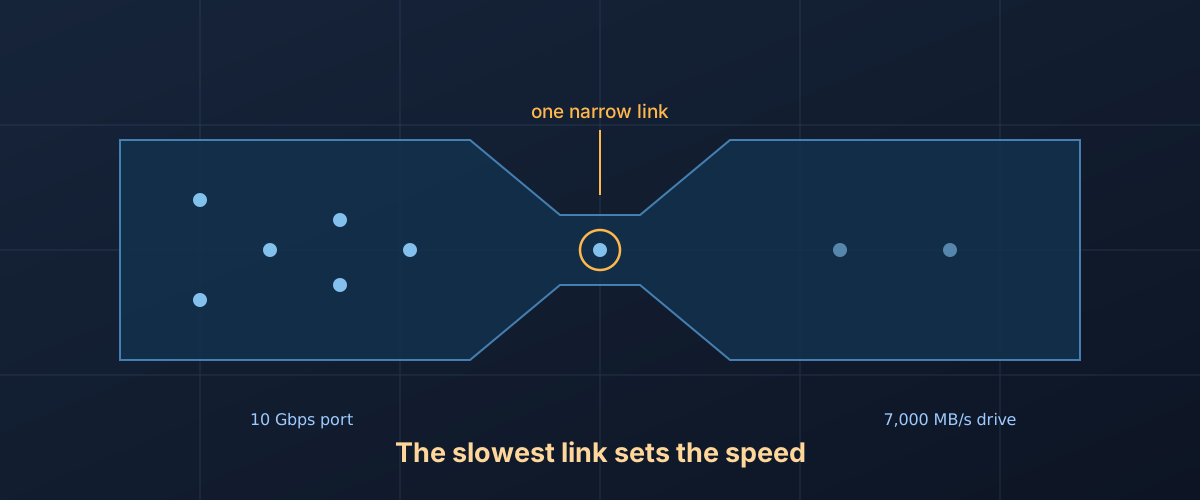
The drive is rated at 1,000 MB/s. The file is 40GB. The progress bar says fifty-one minutes. Everything is plugged in and nothing has thrown an error.
A file transfer is not one device doing one thing. It is a chain: the drive at one end, a controller that speaks for it, a cable, a port, a host controller, a filesystem, and usually a second storage device at the other end that the data has to come from. Every one of those has a ceiling, and the transfer runs at whichever ceiling is lowest. The headline number on the drive’s box describes one link in that chain and says nothing about the other six. So the question worth answering is not why the drive is slow. It is which link is the narrow one.
Start with the cable, because a USB-C plug tells you nothing
USB-C is a connector shape. It is not a speed, and the two get conflated constantly, including by people selling cables. The USB-IF’s own language guidelines for USB 3.2 spell this out for manufacturers: “USB 3.2 only defines the transfer rate of a product,” and “USB 3.2 is not USB Type-C.” The same document lists the three rates a USB 3.2 link can negotiate, 5 Gbps, 10 Gbps and 20 Gbps, and then states the rule that governs the whole chain, in a bullet point aimed at vendors writing packaging copy: “Backwards compatible with all existing USB products; will operate at lowest common speed capability.”
That is the entire mechanism. Two ends that can each do 10 Gbps, connected by a cable that can only do 480 Mbps, negotiate 480 Mbps and get on with it. No warning, no error, no fallback message, because nothing has gone wrong by the spec’s own standards.
And a cable being limited to 480 Mbps is not an exotic failure. It is the normal state of most USB-C cables in most drawers, because most of them were sold to charge something. Apple documents this about its own product plainly: the Apple USB-C Charge Cable “also supports charging, but data-transfer speed is limited to 480Mbps (USB 2.0) and it doesn’t support video.” That is a cable that can deliver enough power to run a laptop, over a connector identical to the one on a 40 Gbps Thunderbolt cable, moving data at roughly sixty megabytes a second before protocol overhead comes off the top.
The labelling makes this harder rather than easier, and the USB-IF’s cable logo guidelines explain why. Certified USB-C to USB-C cables are required to carry a logo on the overmold combining a data rate and a wattage. But for the 240W and 60W cables built to USB 2.0, the document notes that while they deliver “data at up to 480Mbps, this data performance capability is not required to be included on the cable and is not reflected in the charging logos.” So a cable stamped 240W is telling you the truth about power and saying nothing whatsoever about data, and 480 Mbps is what you get. A cable stamped with a number in gigabits is making a data claim. A cable stamped with nothing at all, which describes most of them, is a cable nobody certified.
Two other cable failure modes worth knowing:
- A cable can be fast in principle and marginal in practice. Microsoft’s USB FAQ for driver developers puts it this way: “It is also possible that the USB 3.0 cable has signal integrity issues. In that case, the device might switch to high speed.” A damaged or overlong cable does not usually produce corruption or disconnects. It quietly downshifts, which looks identical to having used the wrong cable.
- Thunderbolt cables are the one case that is easy to identify. Apple notes that its Thunderbolt 4 Pro Cable “has the Thunderbolt logo on the sleeve of each connector,” and that marking is standard across vendors. A lightning-bolt icon on the plug is a reliable signal; its absence is not a reliable signal of anything.
Swapping the cable is also the cheapest test in this entire article. If you have the cable that shipped in the box with the drive, use that one and see whether the number changes.
Then the port, and everything you routed through
The same negotiation rule applies to every hop between the drive and the host controller, and most people have more hops than they think: a monitor’s built-in hub, a dock, a keyboard passthrough port, a front-panel header wired to the wrong motherboard connector.
Microsoft’s FAQ has a section on exactly this question, and the first item on its list is the common one: “If you’re using a USB 2.0 hub, any attached SuperSpeed USB device will operate at high-speed.” A 10 Gbps drive plugged into a 10 Gbps laptop through a hub built for keyboards is a 480 Mbps drive. The rest of that list is worth reading if the cable and the port both check out, because it covers the cases that are invisible from the outside: out-of-date hub firmware, drive firmware, host controller firmware, and a motherboard BIOS that routes a port to the wrong controller.
Ports are at least marked more honestly than cables. The USB-IF’s performance logo guidelines say the port logos indicate “the port’s signaling capability (i.e. 5Gbps, etc.),” and the current set covers 5, 10, 20, 40 and 80 Gbps. A number next to the port is a real claim about that port. On many laptops, not all the USB-C ports are equal, and only one of them is the fast one.
Stop guessing and read the negotiated speed
Everything above is a hypothesis. The operating system already knows the answer, because it negotiated the link.
On a Mac, open System Report. Apple’s instructions for it are to choose Apple menu, System Settings, General, About, then System Report, or to hold Option and choose Apple menu, System Information. Select USB in the Hardware list, pick the drive out of the device tree, and read the Speed field. If a drive you believe is a 10 Gbps device reports 480 Mb/s, you have found your answer and it is almost certainly the cable or a hub. Thunderbolt and USB4 devices appear under their own headings rather than under USB.
On Windows, Device Manager under Universal Serial Bus controllers will tell you whether the drive is sitting behind an xHCI controller, and Windows raises notifications of its own when a device is connected to a port that limits it. Microsoft’s documentation of the USB-C notifications includes one that reads “Use different USB port: the USB device might have limited functionality when connected to this port,” shown when a device is capable of more than the port it is in. Those notifications are easy to dismiss without reading, and they are often the whole diagnosis.
The transfer has two ends
If the link is negotiating at full speed and the copy is still slow, the next candidate is the device you are copying from. A transfer cannot outrun its source. Pulling 40GB off a spinning hard disk caps at roughly what that disk’s platters can deliver regardless of how fast the destination is, and a network share, a memory card, or a second USB device sharing a controller with the first will each impose their own ceiling.
The test is to take the suspect end out of the picture. Copy the same file from the machine’s internal drive to the external one. If it suddenly runs fast, the external drive was never the problem.
Many small files are a different workload entirely
One 40GB file and forty thousand 1MB files are the same number of bytes and nothing like the same job. Each file carries its own cost: a metadata update, a directory entry, an allocation decision, and a round trip that the bulk data transfer does not have to pay. At small enough file sizes the per-file overhead, not the link, is what you are measuring.
How much that costs depends partly on which storage protocol the enclosure speaks. Microsoft’s FAQ describes the difference: the USB Attached SCSI protocol “is a new mass storage protocol designed to improve performance over the established USB mass storage protocol, Bulk-Only-Transport (BOT),” and it does so “by reducing protocol overhead, supporting SATA native command queuing (NCQ) and by processing multiple commands in parallel.” The older Bulk-Only Transport works through one command at a time. On a single huge sequential file, that distinction barely shows. On thousands of small ones, waiting for each command to complete before issuing the next is the bottleneck, and no cable will fix it.
This is also why a cheap enclosure and an expensive one can hold the identical drive and behave differently. The bridge chip between the USB port and the drive is a real component with real capabilities, and it is the part of an enclosure nobody photographs.
Only then, the drive
Having ruled out the link, the source, and the file shape, the drive itself is worth suspecting, and there are two ordinary reasons a healthy drive slows down mid-transfer.
The first is the write cache. Consumer SSDs absorb incoming writes into a fast pseudo-SLC buffer and migrate them into slower multi-bit flash afterwards, so a large transfer starts at the advertised speed and drops when that buffer runs out. How that cache works, and why a fuller drive runs out of it sooner, is a mechanism worth understanding on its own, because it is the one cause on this list that produces a transfer that starts fast and then collapses rather than one that was slow from the first second. That timing is the tell: link problems are slow immediately, cache exhaustion is not.
The second is heat, and it is deliberate rather than a fault. Seagate describes the behaviour in its explanation of NVMe heatsinks: as temperature climbs toward a critical threshold, usually somewhere around 70 to 80 degrees Celsius, “an SSD automatically reduces performance to lower heat output,” and it does this in stages, where “the controller first slows read/write speeds, then gradually scales back bandwidth and background tasks if temperatures remain high.” A compact bus-powered enclosure has very little room to shed that heat. Throttling looks like cache exhaustion, a transfer that starts fine and degrades, but it recovers after an idle spell and returns sooner on the next attempt while the enclosure is still warm.
A short order of operations
Every step here is non-destructive and involves copying rather than moving files, which is deliberate. Diagnosing a slow transfer should never involve putting the only copy of anything at risk.
- Read the negotiated speed in System Report or Device Manager before changing anything. It converts the rest of this from guesswork into a single check.
- Copy one large file, not a folder, and watch the speed. This separates link problems from per-file overhead.
- Swap the cable for the one that came with the drive, or one marked with a gigabit figure or a Thunderbolt logo.
- Plug directly into the machine, bypassing every hub, dock and monitor.
- Change which port you use. On a laptop with several USB-C ports, they are frequently not identical.
- Copy from the internal drive instead of wherever you were copying from, to find out whether the source was the limit.
- Watch when the slowdown starts. Slow from the first second is a link or protocol problem. Fast then suddenly slow is the write cache or heat.
Most of the time the answer is the cable, and most of the time the cable is one that was never sold to move data in the first place. It charges a phone perfectly. It is doing precisely what it was built to do, and the connector on the end of it is the only part that made you think otherwise.