"You Need to Format the Disk": Why Not to Click Format Yet
Windows says a drive full of files needs formatting. What the message actually means, why your files are probably still there, and what Format would do to them.
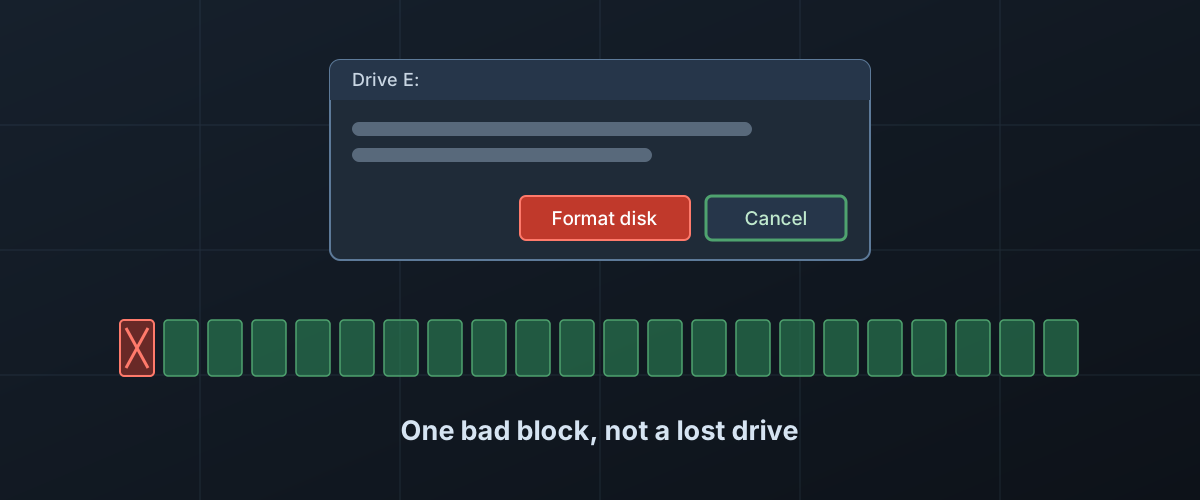
You plug in a drive that had files on it yesterday, and Windows says “You need to format the disk in drive E: before you can use it.” The dialog has two buttons, and the big one says Format Disk. A Mac has its own version of the same complaint, and the same reasoning applies to it.
The message is not saying your files are gone. It says something much narrower: the operating system looked at a small region at the start of the drive and did not find anything it recognised. The files are usually still exactly where they were. Format is the one button in this situation that can make that stop being true.
What Windows is actually looking for
A drive is not organised as files. It is a long row of numbered blocks, and a few structures near the start tell the computer how to read the rest of it:
- The partition table says where each volume begins and ends.
- The boot sector at the start of each volume says which file system it uses and gives the numbers needed to find everything else: cluster size, where the allocation table lives, how big the volume is.
- The file system’s map (the MFT on NTFS, the allocation table and directories on FAT and exFAT) records which blocks belong to which file and what each file is called.
- Your files take up nearly all of the rest.
Windows reads the boot sector and checks it before trusting it. The exFAT specification requires exactly that: an implementation must validate the boot sector’s checksum and confirm every field is in range before using it. If those checks fail, the volume is not a file system as far as Windows is concerned. Disk Management lists it as raw, and Explorer offers to fix that the only way it knows how, by writing a new file system.
That is the whole judgement behind the message. A handful of damaged or unreadable sectors out of billions is enough to trigger it, and none of them need to be sectors your files are in.
Four reasons a drive ends up here
It uses a file system this computer doesn’t read. This one involves no damage at all. A drive formatted on a Mac as APFS or Mac OS Extended gets this message on Windows, and so does one from a Linux machine or a camera with its own format. Windows sees a perfectly healthy boot sector it has no driver for. Plug it back into the machine that made it and everything is there. Which formats each system reads is covered in exFAT, NTFS or APFS.
A write was interrupted. File systems update their own structures every time a file is written, renamed or deleted. Pull the cable or lose power halfway through one of those updates and the structure can be left half old and half new. Windows has made this less likely: since Windows 10 version 1809 the default removal policy for external drives is Quick removal, which turns off write caching so the drive can be unplugged at any time. A drive set to Better performance still needs Safely Remove Hardware, and Microsoft says plainly that skipping it risks losing data. exFAT is the most exposed here, because it has no journal. It only sets a dirty flag before an update and clears it afterwards, so it can tell that something went wrong but has no record of what.
The drive is failing. If the hardware cannot read the sectors at the start, Windows gets an error instead of a boot sector, and the result looks the same. What points this way is how the drive behaves around the message: clicking or repeated spin-up sounds, the drive dropping off and reappearing, or Explorer hanging while it is connected. How to tell a drive is failing goes through the signs in detail. This is the case where what you do next matters most.
The drive lied about its size. A counterfeit flash drive or memory card that claims more capacity than it has can write past its real flash and land back at the start, on top of the file system’s own structures. If a cheap high-capacity stick went raw after being filled for the first time, fake capacity is the likely explanation.
Some of the structures involved have backups. GPT, the partition scheme modern drives use, keeps primary and backup partition tables at opposite ends of the disk, with checksums on both. exFAT keeps a Backup Boot region, which its specification describes as existing to aid recovery when the main one is inconsistent. NTFS and FAT32 keep a backup boot sector as well. Recovery tools know where to find these copies, which is why a drive Windows calls raw is often repairable.
What Format would actually do
Format writes a new, empty file system over the volume. How much of your data survives that depends on which kind of format it is and what kind of drive it lands on.
Full format. Unticking “Perform a quick format” has meant something different since Windows Vista. Microsoft’s note on the change in the format command says a full format now writes zeros to the whole disk. After that there is nothing left for any tool to find.
Quick format on a hard drive. The format reference says a quick format deletes the file table and root directory. It does not touch the blocks the files occupied, so the contents are still on the platters, unlisted, until new files are written over them. This is the case where the folklore about quick formats being recoverable comes from, and on a hard drive it holds: tools that ignore the file system and read the raw blocks can still find a lot.
Quick format on an SSD, or anything flash. Here the folklore breaks.
The same format reference lists a /NoTrim switch that “skips sending
trim” during a format, which tells you the default: a format sends
trim. Trim is how the computer tells a solid-state drive that blocks no
longer hold anything wanted. As KIOXIA’s garbage collection
brief
describes it, data the host unmaps becomes invalid as far as the drive
is concerned, and the drive physically erases it when it next cleans
up. A quick format tells the SSD that the entire volume is free. What
happens to the old contents after that is up to the drive, not you.
Linux behaves the same way: mke2fs,
which creates ext4 volumes, discards every block by default.
Whether the trim actually arrives depends on the path. Microsoft’s fsutil reference notes that a device which reports no trim support never receives trim notifications, and not every drive or USB adapter reports it. So a quick-formatted flash drive may still hold its old contents, or may not, and there is no easy way to tell from outside. It is not something to bet your files on.
What to do instead
Click Cancel. Declining the dialog changes nothing on the drive. Windows will ask again next time; that is all.
Rule out the harmless case. If the drive came from a Mac, a Linux machine, a camera, or a TV recorder, try it there first. If it opens, copy what you need off it, and then choose a format both machines read.
If the files are backed up elsewhere, the drive is now just a drive,
and the repair tools are fair game. Run chkdsk on it without /f
first: the chkdsk
reference
says it only reports errors unless /f is given. With /f it rewrites
whatever it decides is broken, and the same page warns that repairs on
FAT file systems sometimes cause a loss of data. On a Mac, Disk
Utility’s First Aid is the equivalent, and Apple’s repair
guide asks for a current
backup before you run it and suggests erasing the disk if First Aid
cannot fix it. That is sound advice for a drive whose contents exist
somewhere else, and the wrong order for one whose contents don’t.
If the files are not backed up and matter, every repair tool that writes to the drive is a gamble with the only copy. The safer pattern, spelled out in the GNU ddrescue manual, is to copy the whole drive to an image on a different, larger drive and work on the copy, so a repair that goes wrong can be retried. Two tools from the same project then cover most cases. TestDisk can rebuild a partition table and restore an NTFS or FAT32 boot sector from its backup copy, which is often the entire fix for a raw volume. PhotoRec ignores the file system altogether and recognises files by their contents, block by block, so it works even when the map is gone; what it cannot give back is the folder structure the map held. Both are powerful. Read their documentation before letting either write anything, and be certain which drive is the source and which is the destination, because a destination drive is overwritten.
If the drive shows any sign of failing, stop. Unplug it and do not
run chkdsk, First Aid, or any repair on it. The ddrescue manual puts
it bluntly: never try to repair a file system on a drive with I/O
errors, because you will probably lose more data. A repair tool reads
and rewrites constantly, and a failing drive tends to develop more
errors the longer it runs. Each time it powers up may be the last time
it reads at all. If what is on it is worth money to you, a recovery
service has the best chance with a drive that has been powered as
little as possible since the first symptom.
The short version
“You need to format the disk” means Windows could not make sense of a few sectors at the start of the volume. It does not mean the files are gone, and in most cases they are not. Format is the step that would remove them: a full format writes zeros everywhere, and a quick format on an SSD tells the drive it may erase everything. Cancel the dialog, check whether the drive simply comes from another system, and if the data matters and has no other copy, work from an image rather than the drive. A drive with a current backup turns this message into a nuisance rather than an emergency.