exFAT, NTFS or APFS: Formatting a Drive for Mac and Windows
Why a Mac can read a Windows drive but not write to it, what exFAT gives up to work on both, and which format fits which drive.
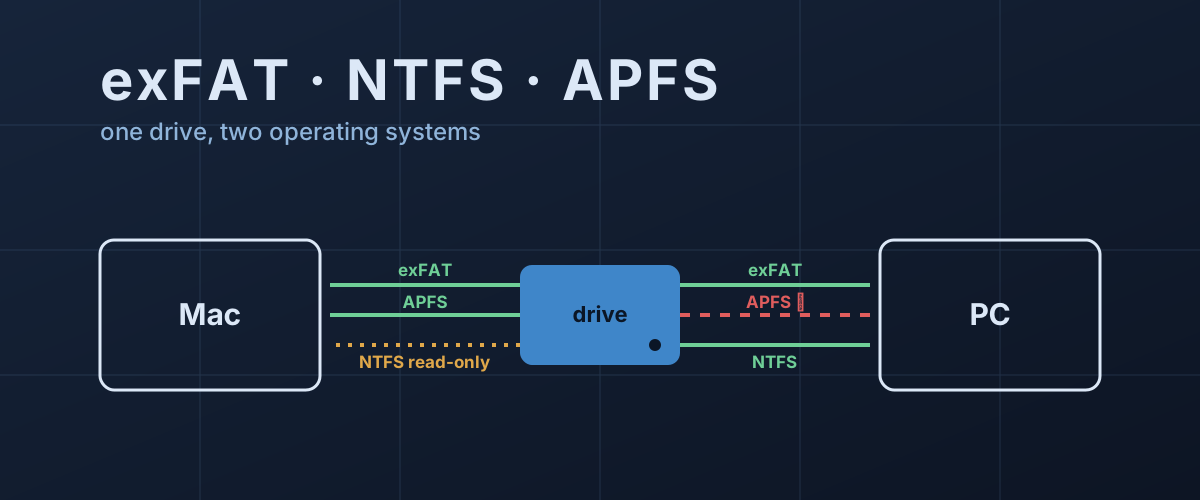
A drive that works perfectly on a Windows PC plugs into a Mac and opens fine, but nothing can be saved to it. Or a drive set up on a Mac goes into a Windows laptop, and Windows says it needs to be formatted before it can be used. Neither drive is faulty. Each was formatted with a file system the other computer only half understands, or doesn’t understand at all.
Which file system to pick is a choice you make once, usually in a hurry, in a dialog that offers four or five names and explains none of them. It decides which computers can write to the drive, how large a single file can be, and how the drive copes when it is unplugged at the wrong moment. That last one is the part most advice skips.
What a file system actually is
A drive, on its own, is a long row of numbered blocks. It has no idea what a file is. The file system is the index written onto those blocks: which blocks belong to which file, what each file and folder is called, how big it is, and which blocks are still free.
An operating system can only use a drive if it has a driver that understands that index. Reading it is the easy half. Writing is harder, because a driver that updates the index incorrectly can make every file on the drive unreachable. So an OS can ship read support for a foreign format and leave writing out, and that is how a Mac handles NTFS.
The formats you are offered
APFS is the Mac’s own format, and Apple’s list of Disk Utility formats describes it as the default for macOS 10.13 and later. Windows has no built-in driver for it. Plug an APFS drive into a Windows PC and, as Help Desk Geek’s guide to Mac drives on Windows explains, Windows can’t read it natively and offers to format it instead. Accepting that offer erases the drive.
Mac OS Extended, also called HFS+, is the format APFS replaced. It has the same problem on Windows and is now mostly relevant for older Macs and existing backup disks.
NTFS is Windows’ native format. A Mac can open an NTFS drive, but Apple’s page on drives a Mac can’t save to is direct about the limit: Disk Utility doesn’t support NTFS, and a Mac might be able to read from it but not write to it. Third-party drivers exist that add write support, but out of the box, an NTFS drive on a Mac is read-only.
FAT32, which Disk Utility labels MS-DOS (FAT), dates from the Windows 95 era. Both Macs and PCs read and write it, and so do many older gadgets that understand nothing newer. Its ceiling is the file size.
exFAT is Microsoft’s successor to FAT32, and the one format that both operating systems can read and write, without add-ons, on a drive larger than 32GB.
FAT32’s 4GB wall, and the 32GB one that isn’t real
FAT32 stores each file’s size in a 32-bit field, so no file can be larger than about 4GB. Microsoft’s file system comparison lists the limit as 4GiB, against 2^64 bytes for both NTFS and exFAT. A single disc image, a long 4K video clip or a large game file will fail to copy to a FAT32 drive even when the drive is nearly empty.
The other FAT32 limit people run into is different in kind. Windows’ format tools have long refused to create a FAT32 volume larger than 32GB, but that was a choice in the tool, not a limit of the file system. The Windows 2000 Resource Kit’s chapter on file systems says as much: Windows would not format FAT32 above 32GB, but would happily mount a larger FAT32 volume created by another system. In April 2026, Microsoft raised the command-line limit to 2TB in Windows 11 Insider builds. The 4GB per-file cap does not move, because it lives in the format itself.
This is why Apple’s advice reads the way it does: MS-DOS (FAT) for volumes of 32GB or less, exFAT for anything larger.
What exFAT gives up
exFAT fixes the file-size problem and works on both platforms, which makes it the standard answer for a shared drive. What it doesn’t have is a journal, and that matters more on an external drive than anywhere else.
Every time a file is written, the file system updates its index as well as the data: the new file’s name, its size, which blocks it now owns, which blocks are no longer free. If power disappears halfway through that update, the index can end up describing a state that never existed, with blocks claimed by two files or a folder pointing at garbage.
NTFS and APFS each guard against this, in different ways. Microsoft’s NTFS overview describes a transaction log: NTFS records changes to its index as transactions, and after a failure it uses that log at the next startup to bring the volume back to a consistent state. APFS, according to Apple’s File System Reference, modifies its structures copy-on-write, putting the changed version in new blocks rather than overwriting the old, and periodically records a checkpoint. If a checkpoint is interrupted, the next mount ignores it and falls back to the last good one.
exFAT has neither. The exFAT specification gives it a single flag, VolumeDirty, which a well-behaved implementation sets before changing the index and clears afterwards. If a drive is pulled mid-update, the flag stays set, and the next computer to mount it knows the volume is “probably in an inconsistent state.” Knowing is not the same as recovering. There is no record of what the interrupted change was, so a repair tool can only look for contradictions and tidy them up, and whatever was being written at the time may be lost. The standard format keeps one copy of the allocation table; a second copy exists only under a transactional extension, TexFAT, which ordinary exFAT drives don’t use.
FAT32 is in the same position, with no journal of its own.
Why “just unplug it” is riskier on exFAT
Windows has changed how it treats external drives. Microsoft’s page on the default removal policy explains that since Windows 10 version 1809, external drives default to “Quick removal,” which stops Windows caching writes so the drive is ready to pull at any time. Under the older “Better performance” setting, pulling a drive without using Safely Remove Hardware risks losing data.
Quick removal narrows the window, but it can’t close it. A drive unplugged in the middle of a copy is still in the middle of an index update, and on exFAT there is no journal to finish or undo it. On a Mac the rule is simpler: eject the drive in Finder before disconnecting it, every time.
If an exFAT drive does come back complaining, run First Aid in Disk Utility on a Mac, which checks and repairs the drive’s formatting and directory structure, or let Windows scan and repair it when it offers. Copy off anything important first if the drive still mounts. A repair tool resolves contradictions in the index by choosing one answer, and it cannot know which one you wanted.
Which format for which drive
A drive used only with Macs: APFS. It is the default, and it is what Time Machine prefers. Apple’s page on Time Machine disks names APFS as the preferred format, still accepts Mac OS Extended (Journaled), and states that Time Machine can’t back up to a disk formatted for Windows. An exFAT drive won’t work as a Time Machine target.
A drive used only with Windows: NTFS. It has the journal, per-file permissions and no practical size limits, and Macs can still read it if you ever need to pull something off.
A drive that moves between a Mac and a PC: exFAT, ejected properly every time. For a drive that carries the only copy of anything, this is the weak spot: the convenience is the reason to have it, and the lack of a journal is the cost. Keep the files that matter backed up somewhere with a journaled format.
A small stick for a camera, car, TV or older device: FAT32, if the device’s manual asks for it and nothing on the drive exceeds 4GB.
Before you reformat
Changing a drive’s file system means erasing it. Apple’s own guide to formatting a disk for Windows says it plainly: formatting erases all the files on the disk, and there is no undo. Copy everything off first, and open a few of the copied files to make sure the copy is real before you start.
Disk Utility will also ask for a partition scheme. Apple’s list of partition schemes offers GUID Partition Map and Master Boot Record, and describes MBR as the choice for compatibility with all Windows computers. In practice GUID is the better default for an external drive: Microsoft’s article on disks larger than 2TB lists GPT data disks as supported since Windows Vista, and notes that MBR can’t address anything past about 2.2TB. On a large drive, MBR would strand the rest, which is the same trap described in why a 1TB drive shows up as 931GB. Reach for MBR only for a small drive and a device that asks for it.
Keep the volume name to 11 characters or fewer, which is the limit Apple gives for FAT and exFAT volumes.
The whole decision comes down to one question: which computers need to write to this drive? If the answer is one kind, use that kind’s own format and get its crash protection for free. If it’s both, exFAT is the only built-in answer, and ejecting it is what stands in for the journal it doesn’t have.