Your C: Drive Is Full: Where the Space Actually Went
Storage Sense freed a few gigabytes and the drive is still full. Here is what is holding the rest, and which of it Windows will hand back on its own.
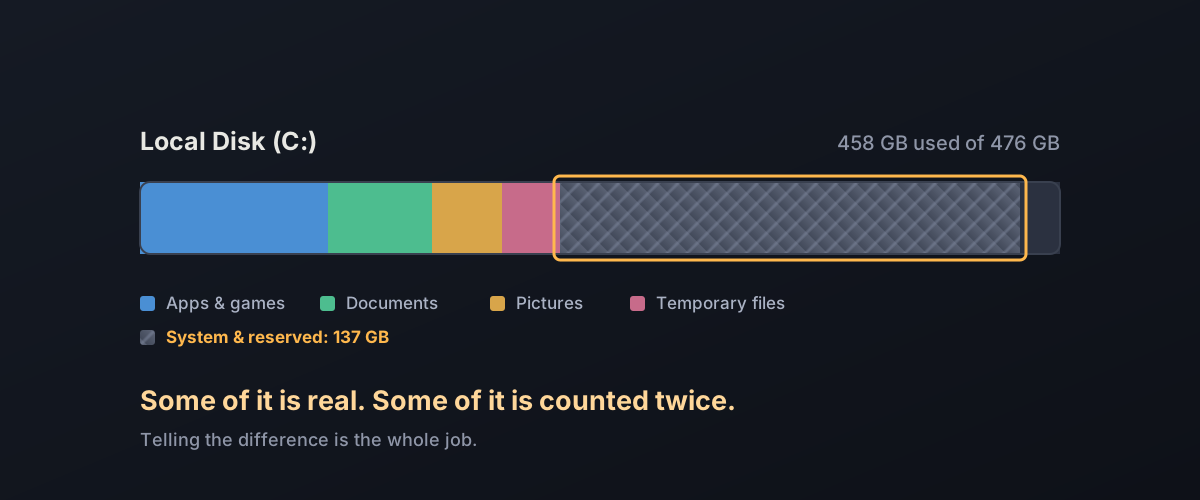
Settings says 18 GB free of 476. You empty the Recycle Bin, uninstall two games, let Storage Sense run, and it gives back four gigabytes. The Storage page shows a category called System & reserved holding something absurd, sixty or ninety or a hundred and forty gigabytes, and clicking it explains nothing.
Some of that number is real and reclaimable. Some of it is space Windows will hand back the moment something needs it. And a decent chunk of it was never there in the first place: Windows is counting the same files more than once.
Sorting out which is which is the whole job.
Storage Sense was never going to fix this
Worth knowing before you conclude it is broken: Storage Sense has a narrow remit, and it runs less often than most people assume. Microsoft’s configuration documentation states that “by default, Storage Sense is enabled and set to run automatically when disk space is running low.” Not daily. Not weekly. Only at the point the disk is already in trouble, on a threshold that Microsoft says “will vary depending on disk size and minimum operational thresholds.”
What it removes is narrow too: temporary files and items in the Recycle Bin. The same page is explicit that “items in your Downloads folder and OneDrive (or any other cloud provider) will not be touched unless you set up Storage Sense to do so.”
So a feature designed to sweep up temp files, running only when you are already nearly out of space, is not going to move a ninety gigabyte system category. It did its job. Its job was small.
The largest folder on the disk is partly an accounting artefact
C:\Windows\WinSxS is the component store, where Windows keeps the
pieces it needs to service, repair and roll back the operating system.
Point File Explorer at it and you may see ten, fifteen, twenty gigabytes.
That figure is inflated, and Microsoft says so directly.
From Microsoft’s page on determining the folder’s actual
size:
files in the folder “might appear to be stored in more than one place in
the operating system, but there’s usually only one copy of the file and
the rest of the copies are actually hard links.” A hard link is a second
directory entry pointing at the same bytes on disk, not a second copy. A
file that lives in both WinSxS and C:\Windows\System32 occupies one
file’s worth of space and gets counted twice by anything that adds up
directory sizes naively. Microsoft names the culprit: “Some tools, such
as the File Explorer, determine the size of directories without taking
into account that the contained files might be hard linked.”
DISM can tell you the real number. From an administrator command prompt:
Dism.exe /Online /Cleanup-Image /AnalyzeComponentStoreThis only reads. It changes nothing. Microsoft’s own example output shows how wide the gap can be:
That 507 MB is a ceiling, not a prize. Overhead is what the store costs you, and only part of it is ever removable: Microsoft’s description of the “Backups and Disabled Features” line includes components kept “to respond to failures in newer components or to provide the option of enabling more functionality”, which are doing a job. In the example above, Number of Reclaimable Packages is 0.
The output line that decides whether cleanup is worth running is Component Store Cleanup Recommended. If it says No, the folder is not your problem, whatever Explorer claims. If it says Yes, the supported fix is one command:
Dism.exe /online /Cleanup-Image /StartComponentCleanupMicrosoft describes this as equivalent to the StartComponentCleanup scheduled task that already runs on its own, except that it deletes superseded components immediately rather than waiting the 30 days the scheduled task allows for rollback. That trade is the whole cost: you lose the ability to roll back recent component updates, and you keep the ability to uninstall updates generally.
You will find advice to append /ResetBase. Read Microsoft’s warning
first: “All existing update packages can’t be uninstalled after this
command is completed.” It reclaims more, and it permanently removes your
route out of a bad update that is already installed. On a machine that is
working fine, that is a poor trade for a few hundred megabytes.
What you must not do is open WinSxS and start deleting. Microsoft puts it without hedging: “Deleting files from the WinSxS folder or deleting the entire WinSxS folder may severely damage your system so that your PC might not boot and make it impossible to update.”
Reserved storage is spoken for, not lost
Part of the System & reserved figure is a deliberate set-aside. Microsoft’s storage settings documentation describes it as space Windows reserves “for use by temporary files, caches, and other files” so that updates install without the machine running out of room mid-way.
The important sentence is what happens under pressure: “When your device is low on space, Windows will clear reserved storage so it can be used for other processes, like a Windows update.” It is shown as used and behaves as available. Chasing it is chasing a number, not space.
Two files sized by your hardware, not your habits
hiberfil.sys. This holds the contents of memory when the machine
hibernates, and Microsoft’s hibernation
documentation
states its size “is approximately equal to how much random access memory
(RAM) is installed on the computer.” On a 32 GB laptop that is tens of
gigabytes sitting in the root of C:, and it scales with the RAM you
bought rather than anything you did.
Turning it off is supported and reversible. It also has a real
consequence, which Microsoft states plainly: “You may lose data if you
make hibernation unavailable and a power loss occurs while the hybrid
sleep setting is turned on. When you make hibernation unavailable, hybrid
sleep does not work.” Hybrid sleep is what writes your open work to disk
when a desktop is asleep. Without it, a power cut while asleep loses
whatever was unsaved. On a laptop you regularly close the lid on, leave
hibernation alone. If you accept that trade, the command from an
administrator prompt is powercfg.exe /hibernate off, and
powercfg.exe /hibernate on puts it back. Do not delete the file by
hand.
System Restore’s shadow copy allocation. Restore points are stored in a shadow copy area with a maximum size, which Microsoft’s vssadmin documentation shows can be expressed as an absolute size or as a percentage of the volume. On a large drive a percentage-based allocation is a lot of gigabytes that look occupied and hold nothing but rollback history.
Check it read-only first, from an administrator prompt:
vssadmin list shadowstorageIf you want it smaller, change it in System Protection (search for
“Create a restore point”, select the drive, then Configure), where
the Max Usage slider does the same job with a visible confirmation. The
vssadmin resize command carries Microsoft’s warning that “resizing the
storage association may cause shadow copies to disappear”, meaning your
existing restore points can be discarded by the change. Shrinking to zero
or disabling protection removes your ability to roll back a bad driver or
update, which is the thing restore points exist for.
The one large, genuinely temporary item
If you have upgraded Windows in the last week and a half, C:\Windows.old
is probably the biggest single win available, and it is the only one with
a deadline. Microsoft’s guidance on freeing drive
space
notes that “if it’s been fewer than 10 days since you upgraded Windows,
your previous version of Windows will be listed as a system file you can
delete.”
Before you do, read the consequence, because it is stated without qualification: “If you delete your previous version of Windows, this can’t be undone, and you won’t be able to go back to your previous version of Windows.” If the upgrade has been stable for a week and everything you rely on works, removing it is reasonable. If you are still finding out, wait: it expires on its own.
The supported route is Settings > System > Storage > Temporary files, tick Previous Windows installation(s), and remove. Not File Explorer.
What to do, in order
- Run the analysis before the cleanup.
Dism.exe /Online /Cleanup-Image /AnalyzeComponentStorereads only, and tells you whether WinSxS is worth touching at all. Frequently it is not. - Sort by size, not by mystery. Storage settings has a per-folder breakdown, and most full drives turn out to be a handful of very large files rather than system bloat: game installs, video exports, virtual machine disks, downloaded ISOs, a Downloads folder nobody has opened in two years.
- Take the deadline item first.
Windows.oldif it is still there, through Settings, once you are confident in the upgrade. - Then the hardware-sized files, if the trade suits you: the hibernation file and the restore point allocation, both through their supported controls.
- Turn Storage Sense up. Its default cadence is “only when low on disk space”. Setting it to weekly, and giving it permission to clear old Downloads, prevents the slow refill that brought you here.
- Ignore reserved storage. It is released when needed.
When it is actually a capacity problem
If the drive is still tight after all of that, the honest reading is usually that the disk is small for what it is being asked to hold rather than that something is wrong with Windows. A 256 GB boot drive with a modern OS, a couple of large games and a photo library is simply full, and no amount of cleanup changes that arithmetic.
At that point the useful question is what to add. The macOS version of this same problem, a large opaque category with no button to open it, is covered in what “System Data” on a Mac actually is. If the answer is external storage, the specification that changes how a drive feels day to day is not the one on the front of the box: see what a DRAM cache does.