What "System Data" on a Mac Actually Is
macOS reports a large opaque "System Data" category and offers no way to open it. Here is what is inside, and which parts are safe to clear.
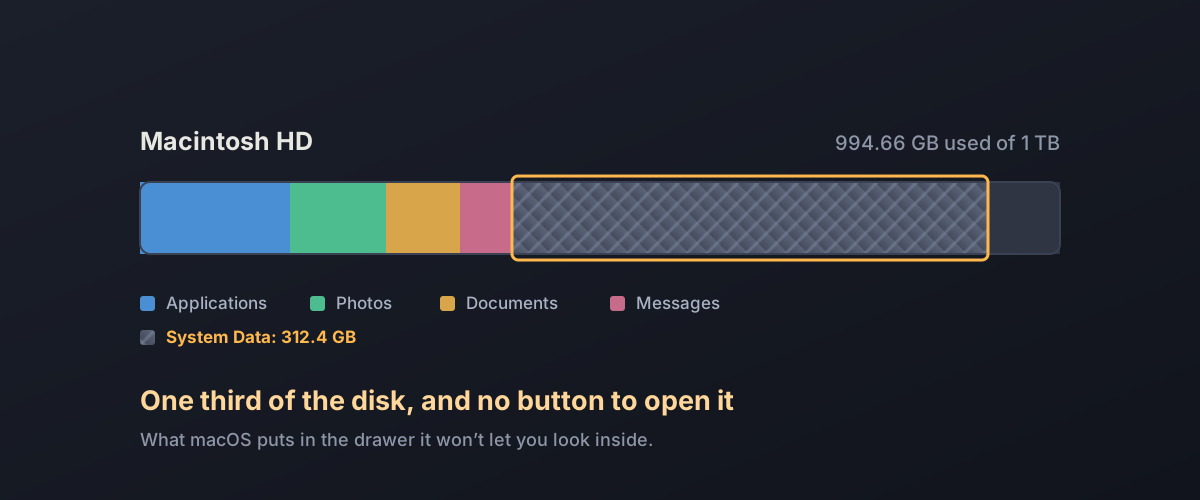
Open Storage Settings on a Mac with a full disk and a large grey block labelled System Data is usually sitting there, sometimes at a hundred gigabytes or more. Clicking it does nothing. There is no list, no breakdown, and no delete button.
It is not a bug, and it is generally not lost space. It’s a catch-all.
If your free space vanished after updating to macOS 27
Check this before anything else. macOS 27 downloads Apple Intelligence’s on-device models automatically after the update, and they are large. Apple’s own figure is up to 14GB on M3 and later Macs with at least 12GB of memory, and up to 8GB on other supported Macs. Measured installs run well past that: MacRumors collected readings from about 14GB on an M1 MacBook Air to over 30GB on one Release Candidate install.
That space is not in System Data. Storage settings files it under macOS: click the info button next to macOS and Apple Intelligence has its own line. On a 256GB Mac, 20 to 30GB is a tenth of the disk disappearing overnight, and the grey System Data bar is where most people go looking for it.
There is no supported way to get it back. macOS 27 removed the switch that turned Apple Intelligence off, so the models are now part of the operating system’s footprint. Don’t go hunting for the model files to delete them: they live in system locations, and the warnings later in this article apply. The practical response is the same as for any other fixed cost: reclaim space elsewhere, using the steps below.
What is in there
System Data is what macOS calls everything that doesn’t fit its other categories: not Applications, not Documents, not Photos, not Music. In practice it’s dominated by a few things:
Time Machine local snapshots. This is nearly always the largest component and the most alarming-looking. If Time Machine is enabled, macOS also keeps hourly snapshots on the internal disk, so you can restore files when the backup drive isn’t attached. They can occupy tens of gigabytes.
They are also self-managing. Apple documents that snapshots are kept for about 24 hours and deleted automatically as they age or as space is needed for something else. It also states that macOS counts the space they occupy as available storage. A Mac reporting 80GB of System Data will free those snapshots on demand rather than fail a write.
Caches. Application caches, browser caches, and system caches. Rebuilt as needed, and mostly not worth hunting individually.
Virtual memory swap. The file macOS pages memory out to. It grows under memory pressure and shrinks afterward. Leave it alone.
Application support files. Plugins, container data, mail attachments, message history, downloaded developer tooling. Some of this is genuinely reclaimable, and it’s the part worth looking at.
Files macOS couldn’t classify. Disk images, installers, archives, old virtual machine images.
What to actually do
Work in this order. It goes from safest to most involved.
1. Let macOS try first. Storage Settings has recommendations that empty the trash automatically, remove watched Apple TV purchases, and offload files to iCloud. Apple’s own tooling knows which files are safe, which is more than can be said for manual deletion in system folders.
2. Find the large files, not the mysterious ones. Most storage problems turn out to be a handful of very large files rather than mysterious system bloat: old disk images, video exports, downloaded installers, virtual machine disks. Storage Settings has a “Large Files” view for this. In practice this fixes more cases than anything in the System Data category will.
3. Check the usual heavy directories. Container folders for communication apps accumulate years of downloaded attachments. Development tooling is particularly aggressive: iOS simulator runtimes and cached build artefacts routinely run to tens of gigabytes on a machine that has ever compiled anything.
4. Deal with snapshots properly, if you must. If snapshots really
are the problem, with a disk so full you cannot work, the supported
route is to turn off automatic backups in Time Machine settings briefly
and let macOS clear them, or to use Apple’s own tmutil command. Do not
delete files inside system directories by hand. Snapshots aren’t
ordinary files, and deletion inside /System or /private/var is how a
working Mac becomes an unbootable one.
5. Restart. Genuinely. A restart clears swap, purges caches, and triggers snapshot cleanup. It’s common for System Data to drop substantially with no other intervention, and it costs a minute.
What not to do
Don’t delete files from system directories manually. macOS protects
much of the system volume, but the parts you can reach (caches, the Time
Machine data store, /private/var) are exactly the parts where deletion
causes damage that isn’t obvious until the next boot.
Be sceptical of cleaner utilities. The category has a long history of aggressive upselling, and the safe operations they perform are mostly ones macOS will do itself. The unsafe ones are the reason to be careful.
Don’t chase the number. System Data fluctuating by several gigabytes is normal. Caches refill, swap grows and shrinks, snapshots come and go. If the Mac is working and has free space, a large System Data figure is not a problem to solve.
When it’s actually a storage problem
If a Mac is persistently near-full after the steps above, the honest answer is usually that the disk is too small for what it’s being asked to do rather than that something is wrong. On Apple Silicon Macs internal storage isn’t upgradeable, so the practical options are moving large libraries (photos, video projects, virtual machines) onto external storage, or moving to a larger machine.
If external storage is where this is heading, the thing worth understanding before buying is which specifications actually change how the drive feels to use: see what a DRAM cache does.